Settings overview
Settings is where you manage your own account and every organization you belong to. Personal settings apply only to you; organization settings apply to everyone in that organization and are mostly limited to owners and admins. Settings shows one of these at a time: your own settings, or one organization's.
Open Settings
- Open the navigation menu (the floating menu at the edge of the screen).
- Click User Profile. This opens your own settings on the Profile page.
To go straight to an organization's settings, open the Scope selector in the page header and choose Organization settings at the bottom of the list. It opens the settings of the organization you're working in.
You can also open Settings from the gear icon in the notification bell dropdown or on the Notifications page, which takes you straight to your notification preferences.
The Settings sidebar
At the top of the sidebar, Settings for picks whose settings you're looking at: You, or one of the organizations you belong to. It also has a Create organization entry. The sidebar then lists only that choice's pages.
Switching here doesn't change the scope you're working in elsewhere in Huntbase.
Your settings
Choose You in Settings for. The pages are grouped under Account and Your work.
| Section | What it does |
|---|---|
| Profile | Your name, email, password, two-factor authentication, and account deletion. See Personal settings. |
| Notifications | Which channels and categories of notifications you receive. See Notifications. |
| Tags | Personal tag folders visible only to you. |
| Billing | Your personal subscription and plan. See Billing & plans. |
| Storage destinations | Buckets you own where files collected from endpoints are stored, for your personal scope. Shown only when personal scope is available to you. See Collect files. |
| API keys | Your own personal API keys, in any organization you belong to. See API keys. |
| Scout | Your own switches for Scout's endpoint tools and its telemetry lake tools. See Personal settings. |
Usage opens from Billing. Achievements and Invite a friend are links at the bottom of the sidebar. See Achievements and Invite a friend.
Billing, Usage, Achievements, API keys and Scout are currently rolling out and may not be visible in your Settings sidebar.
Organization settings
Choose an organization in Settings for. Its pages are grouped under Organization, People & access and Workspace:
| Section | Who sees it | What it does |
|---|---|---|
| Overview | Everyone | Organization name, membership and security settings, and (for owners) deletion. |
| Members | Everyone | Member list; admins can invite, change roles, and remove members. Click a member's email to open their member summary. |
| Roles | Everyone (people who manage members change them) | What each role can do, the templates, and your custom roles. See Roles. |
| Teams | Everyone (admins and team managers change them) | Groups of people you can share with in one step. See Teams. |
| General settings | Owners and admins | Whether the organization can share a scope with other organizations or allow personal scope, and its default settings view. |
| Billing | Owners and admins | Organization subscription and plan (beta). Usage opens from here. |
| Capabilities | Everyone (admins change it) | What the organization can use: Scout's web access and, where available, what Scout may do on endpoints, whether Scout may read your shipped telemetry, and the daily scan budget for your own lake. See Capabilities. |
| Connection access | Owners and admins | Which members can use each organization connection. Restrict a connection to named people; owners and admins always keep access. With the new sharing screens, Share… on a row opens the Share panel. |
| Access inspector | Owners and admins | Check what a member can do with one connection, hunt or query, and why. Shown only until the new access screens reach your organization; Access check replaces it. |
| API keys | Everyone (admins see every key) | Personal and service keys for calling the Huntbase API. See API keys. |
| Access check | Everyone | Whether a person or team can do something to one item, and why. See Access check. |
| Access log | Owners, admins and people who manage members | Every change to sharing, teams, roles and API keys. See Access log. |
| Tags | Owners and admins | Shared tag folders for the whole organization, including which folders are Access-bearing. |
| Watchers | Owners and admins | Turn watchers on or off for this organization and tune how they act. The main surface is the Watchers page; this tab is scoped to the organization you opened. |
| Storage destinations | Everyone | Buckets your organization owns where files collected from endpoints are stored. Admins manage them; other members see a read-only list. |
| Audit Log | Owners and admins | Searchable history of changes made to the organization. |
Members who are not admins only see Overview, Members, Capabilities and Storage destinations, plus Roles, Teams, API keys and Access check where the new access screens are on. See Organization management for the details of each section.
Members, Roles, Teams, Capabilities, Connection access, Access inspector, API keys, Access check and Access log are grouped under People & access. Roles, Teams, API keys, Access check and Access log are part of the access screens that are rolling out; until they reach your organization, those five aren't in the sidebar. Once they do, Access inspector leaves the sidebar and its links open Access check, which answers the same question for every kind of item and for teams. They are also advanced settings, shown only in Advanced.
On a phone
On smaller screens there is no sidebar. Settings opens on a list of pages, with Settings for at the top. Tap a page to open it, and use the bar at the top (for example Acme / Members) to go back to the list.
Basic and advanced settings
Some settings are advanced: most people never need them. Basic hides them and keeps Settings and sharing to the essentials. Advanced shows everything. Today the advanced pages are Roles, Teams, API keys, Access check, Access log, Managed access and Managed customers. In Basic, sharing offers Can view and Can edit, and the Members page offers the Owner, Admin and Member roles.
Switching only changes what you see. Nobody's access changes either way, and anything already set up, such as teams or custom roles, keeps working in Basic.
- Organization default. Owners and admins choose what members see in Settings › [Organization] › General settings › Default settings view.
- Your own choice. Anyone can turn Show advanced settings on or off below the settings menu. Your choice applies in every organization and wins over the organization's default. Once you've chosen, Use the organization's default goes back to following it.
If you open a link to an advanced page while you see Basic, Huntbase explains that it's an advanced setting and offers Show advanced settings.
Legal links and version
The bottom of the sidebar shows links to Achievements and Invite a friend, then Terms, Privacy, AUP, and Security, followed by the current app and API version. Support may ask you for these version numbers when troubleshooting.
The Scope selector
Outside Settings, the page header contains the Scope selector (labelled Scope: followed by the scope you are working in). Scope decides whose data you are looking at across Huntbase: connections, hunts, insights, queries, playbooks, tags, and more are all filtered by the scope you select.
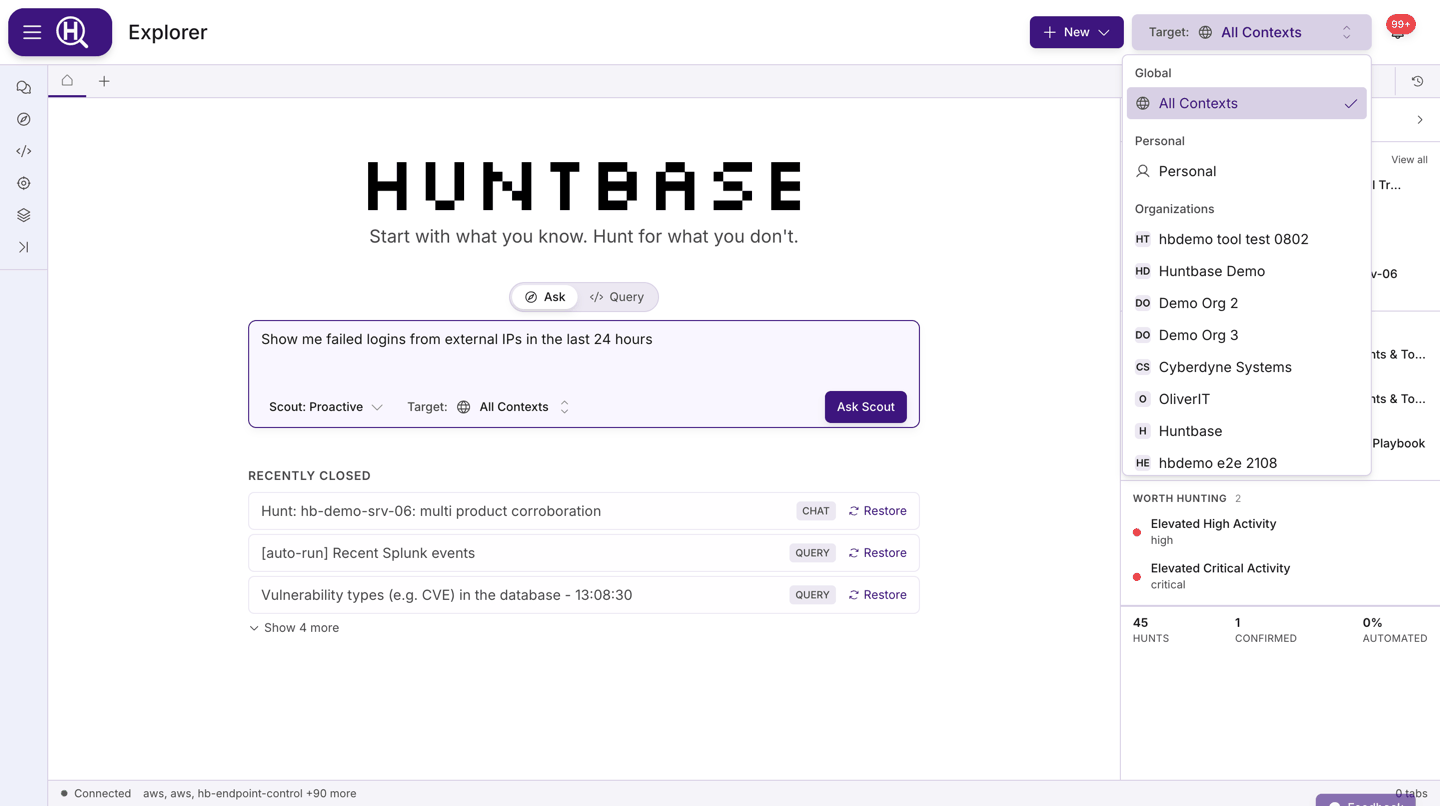
- Personal is your own private scope. Anything created here is visible only to you. It is missing from the list if an organization you belong to has turned personal scope off.
- Each organization you belong to appears as its own scope, under Organizations.
You work in one scope at a time: choosing an entry replaces the current one. Your selection is remembered between visits.
Settings hides the Scope selector; choose whose settings to see with Settings for instead. Outside Settings, Organization settings at the bottom of the Scope selector opens the settings of the organization you're working in.
If a connection, playbook, or hunt you expect to see is missing, check the Scope selector first. It is the most common reason for an "empty" page.
Theme
The light/dark theme toggle lives in the navigation menu, next to the last menu item, not in Settings. Click it to switch themes; the choice is remembered on this browser.
Sign out
Sign Out is the last item in the navigation menu. Signing out returns you to the sign-in page.
Next steps
- Personal settings — profile, security, tags, and invites
- Organization management — create and run an organization
- Access control — levels, sharing, teams and API keys
- Notifications — channels and preferences
- Billing & plans — subscriptions and usage