Organization management
An organization is a shared space for a team: its connections, hunts, insights, playbooks, tags, and watchers are visible to its members and kept separate from your personal work and from other organizations. You can belong to several organizations, and each has its own owners, admins, and members.
![Settings › [Organization] › Overview showing Organization settings, Quick actions, and Danger zone](/assets/images/settings-org-overview-efbc40997053ecdf225d0f2a6334ef8b.png)
Create an organization
- Open Settings (navigation menu › User Profile).
- At the top of the sidebar, open Settings for and choose Create organization.
- Enter an Organization Name (letters, numbers, spaces, and underscores). Optionally set an Organization Domain such as
acme.com— it is pre-filled from your email address. - Click Create Organization.
You become the organization's owner and are taken to its settings. Names are unique across Huntbase; if yours is taken you are asked to pick another. Domain-based joining is configured afterwards from Membership Settings (below).
You are also offered Create your organization during first-time onboarding, where only the name is needed.
Overview
Settings › [Organization] › Overview shows the organization's settings. What you can change depends on your role:
- Organization Name — owners edit it inline; admins and members see it read-only.
- Quick actions (owners and admins) — Membership Settings and Security Settings, described below.
- Danger zone (owners only) — Delete organization.
- Organization profile — what your organization runs and must comply with. Scout uses it to recommend relevant hunts and surface telemetry gaps. See Organization profile.
Membership Settings
Controls how people join and who can be invited. The dialog shows the organization's email domain and two checkboxes:
| Setting | Effect |
|---|---|
| Any user with a @domain email address can join | People with a matching email domain can join automatically. |
| Users without a @domain email address cannot be invited | Restricts invitations to matching email domains. |
Click Save changes to apply.
Security Settings
- Everyone in this organization must enable 2FA — requires two-factor authentication for all members.
- Require 2FA by date (optional) — appears when the requirement is on; sets a deadline by which members must have 2FA enabled.
Click Save changes to apply. Members enable 2FA from Personal settings.
Delete organization
Owners can delete the organization from the Danger zone. The Delete organization dialog explains that all members, settings, and associated data are removed, and asks you to type the organization's name to confirm. This cannot be undone.
Organization profile
The Organization profile on the Overview describes your environment under Environment & Tech Stack Details. Every field is optional:
| Field | What to put there |
|---|---|
| Products & Data Sources | The tools, data sources and security products you use (for example AWS, CrowdStrike, Okta). |
| Organization Size | Approximate headcount. |
| Business Domain and Industry Vertical | For example Fintech and Financial Services. |
| Cloud Providers | For example AWS, Azure, GCP. |
| Security Tools & Capabilities | Categories or tools, such as EDR, SIEM or IAM. |
| Compliance Frameworks | For example SOC 2, HIPAA, PCI-DSS. |
| Architecture & Environment Notes | Free text about how your environment fits together. |
Owners and admins edit the profile and click Save profile (or Discard); members see it marked Read-only for members. You are also asked for the main fields while you set up a new organization, where Skip for now leaves them for later.
General settings
Settings › [Organization] › General settings is for owners and admins. It holds:
- Scope isolation: whether the organization may share a scope with other organizations, and whether its members may also work in personal scope. An admin can turn either off; turning one back on needs Huntbase support, so you're asked to confirm first.
- Default settings view: Basic or Advanced, what members see unless they choose for themselves. Switching changes only what's shown, never who has access. See Basic and advanced settings.
Members
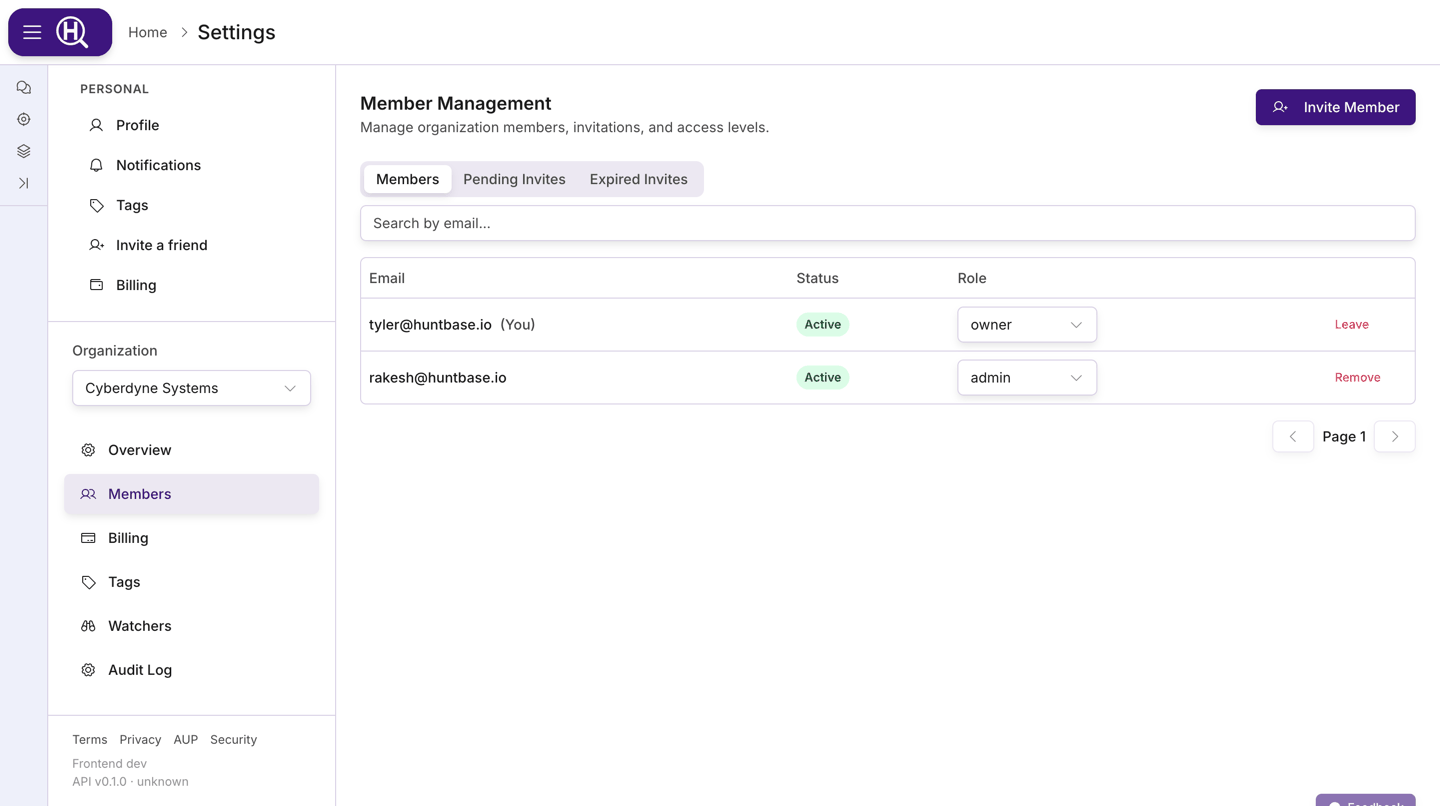
Settings › [Organization] › Members lists everyone in the organization.
Invite someone
Owners and admins see Invite Member. In the Invite User dialog enter the Email address, choose a Role, and send. The invitee receives an email and appears under Pending Invites until they accept.
Member table
| Column | Notes |
|---|---|
| Your own row is marked. | |
| Status | Active or Inactive. |
| Role | Owners and admins can change a member's role from the select in this column (only roles they are allowed to assign are offered). |
| Action | Remove removes another member; on your own row it reads Leave. Both ask for confirmation. |
Use the search box to filter by email; the table is paginated.
Where the new access screens are on, a member's email is a link. It opens a side sheet with their role, teams, what they can do on each kind of item, their direct grants and their personal API keys. See Member summary.
Pending and expired invites
Owners and admins also see two more tabs:
- Pending Invites — email, role, and when each invite Expires, with a Revoke action per row.
- Expired Invites — email, role, and when each invite Expired, for reference.
Roles
| Role | In Huntbase |
|---|---|
| Owner | Everything an admin can do, plus rename and delete the organization. |
| Admin | Invite, change roles, and remove members; manage membership and security settings; access Billing, Usage, Tags, Watchers, and Audit Log; manage Storage destinations. |
| Member | Work inside the organization's scope and see Overview and Members read-only. |
There is no dedicated transfer-ownership control; roles are changed from the Role select in the member table.
A role also sets each member's default access to Actions, scripts, connections, endpoint tags, hunts and queries. Where the new access screens are on, the Role select also offers the Analyst, Responder and Detection engineer templates and your custom roles; see Roles. Share an item with more people, or with a team, to give more than the default. See Access control overview.
Teams, access check, API keys and access log
Under People & access, organizations with the new access screens also have:
- Teams — group people and share with the whole group. See Teams.
- API keys — personal and service keys for the Huntbase API. See API keys.
- Access check — whether someone can do something to one item, and why. See Access check.
- Access log — every change to sharing, teams, roles and keys. See Access log.
Capabilities
Settings › [Organization] › Capabilities is what this organization can use. Owners and admins change it; other members see it read-only.
The Scout card holds Scout may search the web and Scout may browse external pages, and shows whether autonomous hunts are armed.
Endpoint
This feature is currently rolling out and may not be enabled for your organization.
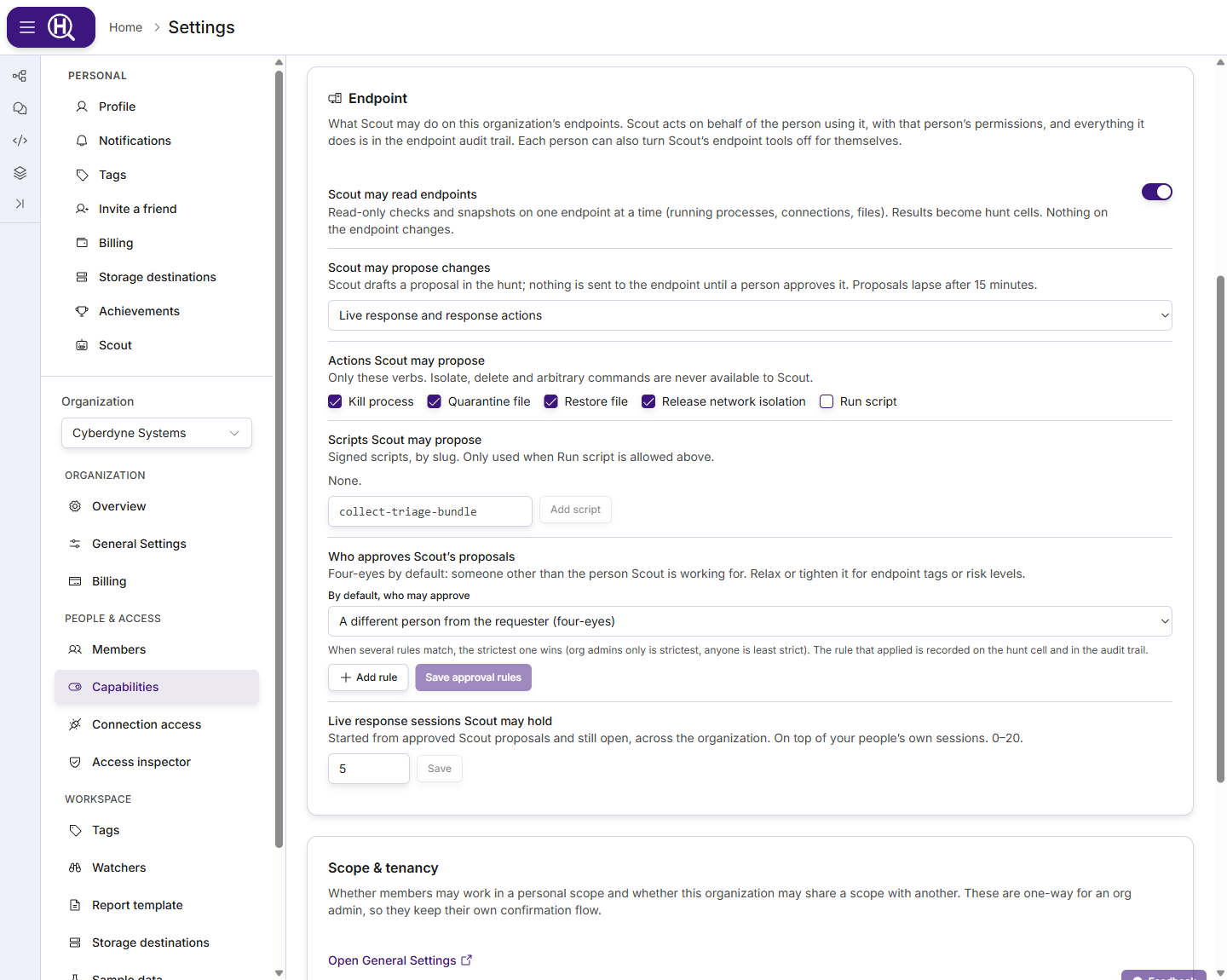
The Endpoint card controls what Scout may do on the organization's endpoints. Everything starts off, or at its most restrictive. Scout always acts on behalf of the person using it, with that person's permissions on the endpoint, and everything it does is in the endpoint audit trail as Scout on behalf of that person. Each person can also turn Scout's endpoint tools off for themselves under Settings › Personal › Scout. See Scout on endpoints for what Scout does with these settings.
| Setting | What it does | Default |
|---|---|---|
| Scout may read endpoints | Read-only checks and snapshots on one endpoint at a time (running processes, connections, files). In a hunt the results become endpoint cells. Nothing on the endpoint changes. | Off |
| Scout may propose changes | Off — Scout never proposes anything, Live response only, or Live response and response actions. Scout drafts a proposal in the hunt; nothing is sent to the endpoint until a person approves it, and proposals lapse after 15 minutes. | Off |
| Actions Scout may propose | Which of Kill process, Quarantine file, Restore file, Release network isolation and Run script Scout may propose. Takes effect when proposals include response actions. Isolate, delete and arbitrary commands are never available to Scout. | None |
| Scripts Scout may propose | The signed scripts, by slug, Scout may propose when Run script is allowed. Type a slug and click Add script. | None |
| Who approves Scout's proposals | Who may approve a proposal, by default and by rule. See Approval rules. | Four-eyes, no rules |
| Live response sessions Scout may hold | How many live response sessions started from approved Scout proposals may be open at once across the organization, on top of your people's own. 0–20. | 5 |
Owners and admins change these settings; other members see them read-only. Anything that loosens them — turning reads on, allowing more proposals, adding an action or a script, relaxing who approves, or raising the live response budget — always needs an owner or admin. Making them stricter needs only permission to change organization settings.
Scout also needs the organization permission Use AI endpoint tools, which every member holds by default, and the person's own permission on the endpoint for each thing it does: see What you need.
Approval rules
By default, who may approve is one of:
| Choice | Who may approve |
|---|---|
| A different person from the requester (four-eyes) | Anyone allowed to act on the endpoint except the person who asked. When Scout proposed something on your behalf, you are the requester, so someone else approves it. This is the default. |
| Anyone allowed to act on the endpoint, including the requester | The requester too. |
| Org admins only | An organization owner or admin, and still not the requester. |
Add rule relaxes or tightens this for some proposals. A rule reads When the endpoint is tagged a tag (for example lab), or When the action is a risk level, then approve: one of the three choices. The risk levels are:
| Risk level | Covers |
|---|---|
| Low risk | Restore file, release network isolation, live response and watches |
| Medium risk | Kill process, quarantine file |
| High risk | Run script |
When several rules match, the strictest one wins (Org admins only is strictest, Anyone… least strict); when none matches, the default applies. The rule that applied is shown on the hunt cell and recorded in the audit trail. Save approval rules applies your changes.
- Only access-bearing tags can relax approval. A tag rule that is less strict than the default matches only tags from an access-bearing tag folder, because only people who manage endpoint access can put those tags on an endpoint. A tag rule that tightens approval matches any tag.
- Changing the rules never loosens a waiting proposal. A proposal is held to the stricter of the rule that applied when it was made and the one that applies when someone approves it.
- The Action approvals card further down this page does not apply here. Endpoint proposals are approved only under these rules. To keep scripts for admins, add When the action is High risk (run script), approve: Org admins only.
- Safe mode wins. While a fleet is in safe mode, nothing can be proposed for or approved on its endpoints.
Telemetry lake
This feature is currently rolling out and may not be enabled for your organization.
The Telemetry lake card controls what Scout may read from the telemetry you ship to Huntbase and from your own lakes, and how much of your own lakes can be read each day. Huntbase only ever reads your own lakes: telemetry you ship always goes to the Huntbase data lake. Scout reads with the permissions of the person using it. Each person can also turn it off for themselves under Settings › Personal › Scout.
| Setting | What it does | Default |
|---|---|---|
| Scout lake tools | Lets Scout list your telemetry sources, read field statistics and sample events, and suggest Browse filters. Always read-only and bounded by a time range. See Scout and your telemetry. | On |
| Daily scan budget for your own lake (GB) | How much Search, lake queries and Scout may scan per day, between them, on lakes your organization owns. Each read is estimated before it runs. 0 to 10,000, and 0 stops scans. The Huntbase data lake isn't counted. When the budget is used up, Search asks you to narrow the view, a lake query leaves your lakes out and lists them as excluded, and Scout says so. | 50 |
Only org admins can change these settings. Turning the lake tools back on and raising the budget both loosen what's allowed, so they always need an org admin. If someone without that right tries, the card shows the reason next to the setting.
Tags
Settings › [Organization] › Tags (owners and admins) manages Organization Tags — shared tag folders visible to every member. Create folders with New folder, add and color tags inside them, and delete folders you no longer need. Changes affect everyone in the organization. Personal tag folders live under Personal settings.
Access-bearing tag folders
This feature is currently rolling out and may not be enabled for your organization.
Tags in an Access-bearing folder can carry endpoint access: someone granted a role on one of them can reach every endpoint that carries it, including endpoints tagged later. Access itself is granted under Endpoints → Access — see Access and activity. Only organization folders can be access-bearing, and only organization admins can change the setting; everyone else just sees the Access-bearing badge on the folder.
- Turn it on: click Make access-bearing on the folder and confirm. From then on, only people who can manage endpoint access can assign that folder's tags to endpoints — because assigning one gives people access. Nothing changes until access is granted on a tag.
- Turn it off: click Access-bearing on the folder. The confirmation warns: "Every endpoint-access grant on this folder's tags will be deleted, on every fleet. People who reach endpoints only through those tags lose that access straight away." Click Delete grants and turn off to go ahead. The tags and what they are attached to stay as they are, but turning the setting back on later does not bring the grants back.
Storage destinations
This feature is currently rolling out and may not be enabled for your organization.
Settings › [Organization] › Storage destinations is where files collected from endpoints are stored: an S3 or S3-compatible bucket you own. Files are never kept by Huntbase. File collections use the Default destination, and until one destination is the default and has an access key, collecting files is blocked.
Organization admins manage destinations. Other members see the list as View only, so they can tell whether one exists.
Add a destination
- Click Add destination.
- Fill in the form:
| Field | What to enter |
|---|---|
| Name | A label for the destination, such as "Evidence bucket". |
| Bucket | The bucket name. |
| Folder (optional) | A folder inside the bucket to store files under. |
| Region | The bucket's region. |
| Custom endpoint URL (optional) | Leave empty for AWS S3. Set it for S3-compatible services such as MinIO, Cloudflare R2 or Backblaze B2. |
| Path-style addressing | Address the bucket as /bucket/key. Required by MinIO. |
| Access key ID and Secret access key | Use a key that can only write to, read from and delete in this bucket. |
- Click Add destination, then Test connection. The result reads Connection works or Connection failed with the reason.
The secret access key is write-only: it is stored securely and never shown again. The list only says Access key set or No access key.
Change a destination
Open the destination's more-actions menu:
| Action | What it does |
|---|---|
| Edit | Change the name, bucket and other settings. The access key isn't shown or changed here. |
| Replace access key | Enter a new key. It replaces the current one immediately. |
| Make default | Use this destination for file collections. There is one default. |
| Delete | Removes the destination and its stored access key. Files already in the bucket are not deleted, but Huntbase can no longer create download links for them. Deleting the default blocks file collections until another destination is made the default. |
Sample data
Settings › [Organization] › Sample data shows whether the organization has the Example Corp sample data, what it includes, and when it removes itself. Everyone can see it; only org admins can pause new sample alerts, change the removal date, remove it or install it again. See Sample data.
Watchers
Settings › [Organization] › Watchers (owners and admins) turns watchers on for this specific organization and tunes how they act. The Watchers page does the same across every organization you can see, and is where you write your own.
Audit Log
Settings › [Organization] › Audit Log (owners and admins) shows activity and changes made to the organization.
| Control | Purpose |
|---|---|
| Search audit logs… | Free-text search across entries |
| Event type | All Events or a specific event type |
| User | All Users or a specific actor |
The table columns are Event, Description, Performed By, and Date, with paging at the bottom.
For changes to access specifically, with what changed before and after, use the Access log.
Scope and data isolation
The header Scope selector decides whose data you are working in. Selecting an organization shows its connections, hunts, insights, playbooks, and tags; selecting Personal shows only your own. Data belongs to the scope it was created in and is not visible to other organizations. See Settings overview for how the selector works.
Billing and usage
Owners and admins also see Billing for the organization while it is rolling out; Usage opens from there. See Billing & plans.
Next steps
- Access control — levels, sharing, teams and API keys
- Watchers — enable and tune watchers for the organization
- Billing & plans — organization subscriptions
- Connections — add data sources to the organization's scope
- Settings overview — sidebar and Scope selector